Welcome back.
Your library is where you left it.
A calm place to think — in Markdown you keep
Notes, links, databases, boards, charts, flashcards and documents in one library, open in a browser tab on any computer you sign in from. Everything you write stays plain Markdown, and one click writes the whole library — notes, PDFs, spreadsheets and all — to a zip on your own disk. Connect Claude or ChatGPT and they can work in it with you.
free in your browser · one account for every computer · macOS & Windows apps by personal invite
The tour
Meet Vantanote.
Recent ···
Graph ···
Tags ···
Note
Sourdough Lab
Week 12. Switched the levain to 75% hydration — the crumb opened right up, and the crust finally sings.
Fed the starter at 8:00 — doubled by noon.
Note
Sourdough Lab
Compared [[Poolish vs Biga]] for the weekend bake — and the numbers from [[Flour Suppliers]] say the stone-milled bag wins.
Link a note once — it answers back forever.
Note
Sourdough Lab
The panels beside your writing are blocks — to-dos, connections, an outline, a clock, a calendar.
Drag them into your order. Move them across sides. Add more.
Database
View settingsBakes178 notes
| Name | Status | Bake day | Rating |
|---|---|---|---|
| Ciabatta | done | 07/28 | 4.8 |
| Cardamom Buns | testing | 08/06 | 4.5 |
| Rye Loaf | testing | 08/05 | 4.2 |
| Danish | idea | 08/14 | — |
+ New note
Database · Board
Bakes
Database · Calendar
Bakes · August
Note · Chart
Market Sales
Note
Sourdough Lab
Check it off in the panel, in a note, anywhere — it's the same checkbox.
Filters
Groups
Decks ↗
From note — Food Science › open
Note
Sourdough Lab
The same library, dressed how you think — twenty-six themes and four surfaces.
Write in plain Markdown.
Readable anywhere, exportable in one click, yours in twenty years.
Link your thinking.
[[Brackets]] connect notes — and the Connections panel answers back.
A workspace of blocks.
Every panel is a block you can reorder, move across sides, or remove.
A database is just a note.
Rows are links to real notes. The table is a view — nothing to export.
Drag it to done.
The board writes the note's own properties — through the same safe save as everything else.
Plans, on their days.
Hover a day, press +, and a new note lands there — already dated.
Charts that tell the truth.
Mixed scales split into honest panels. Numbers on, if you want them.
Check it off anywhere.
A task in the panel is the checkbox in your note — one click, saved. Give it a date and it reminds you; give it a rhythm and it comes back.
597 notes, one map.
Every dot is a note, every thread a link — clusters form around what you think about.
Any note can quiz you.
Write question :: answer — spaced repetition schedules the reviews for you.
Dress it how you think.
Twenty-six themes, four surfaces — daylight tiles to midnight glass.
Master view
Storage — where the gigabyte went
Loading…
Switches — what is on, and what follows from it
Loading…
Accounts
Loading…
Shares & connectors
Loading…
Devices & versions
Loading…
Growth
Loading…
Releases & downloads
| Version | Published | Asset | Downloads |
|---|---|---|---|
| Loading… | |||
Download invites — only links minted here can download
| Label | Link | Downloads | Expires | Status | |
|---|---|---|---|---|---|
| Loading… | |||||
Why people switch
Six reasons it's built differently
Most note apps ask you to trust a company with your thinking, and keep it in a format only they can read. Vantanote asks for the trust and hands you the way out in the same breath — your notes are Markdown, the whole library exports as a zip in one click, and we say plainly what we can and cannot see.
Take everything with you, whenever you like
Every note is Markdown — the same kind of file you could open in any text editor, today or in twenty years. Settings → Library writes the whole thing to a zip on your disk: every note as a .md file, every PDF and spreadsheet as the original. Run it on your first day and keep the copy somewhere you trust. Nothing in it needs us to read it.
Lose the connection, keep writing
Every edit is saved on the device before it goes anywhere, then queues and goes up when you are back. Notes you have already opened stay open, and the app itself is kept on your machine so it starts again with no connection. What waits for the network is a note you have never opened on this computer. The desktop app, pointed at a folder, needs no connection at all.
Sync in seconds — and never locked in
Type on one computer and it's on the other in a few seconds, over an encrypted connection, into storage no other account can reach. Not a safe we can't open, though — we run those servers and hold their keys. When two computers edit the same note, the edits are merged line by line; if both changed the same line, the newer one wins and the other stays in the note's version history.
One place, not five apps
Notes link to notes and answer back. A graph draws the shape of your thinking. Boards, tables, flashcards, PDFs, and spreadsheets all live — and open — in the same quiet place your writing does.
It won't quietly corrupt your work
Before a single byte is written, every save is checked to be perfectly reversible. If a paragraph can't be stored losslessly, Vantanote refuses and tells you — rather than silently mangling it. Few editors can promise this.
Claude and ChatGPT can work in it
Connect the assistant you already use and it reads your notes, searches them, writes new ones, edits one section of a long note without touching the rest, and renames things with every [[link]] following along. It reads your PDFs too, including lecture slides that are only pictures. Notes you tag #no-ai stay invisible to it.
What it does
Everything in these pictures is the real app
No mockups. These screenshots come straight from Vantanote running on a Mac.
Write & connect
Notes that remember how they relate
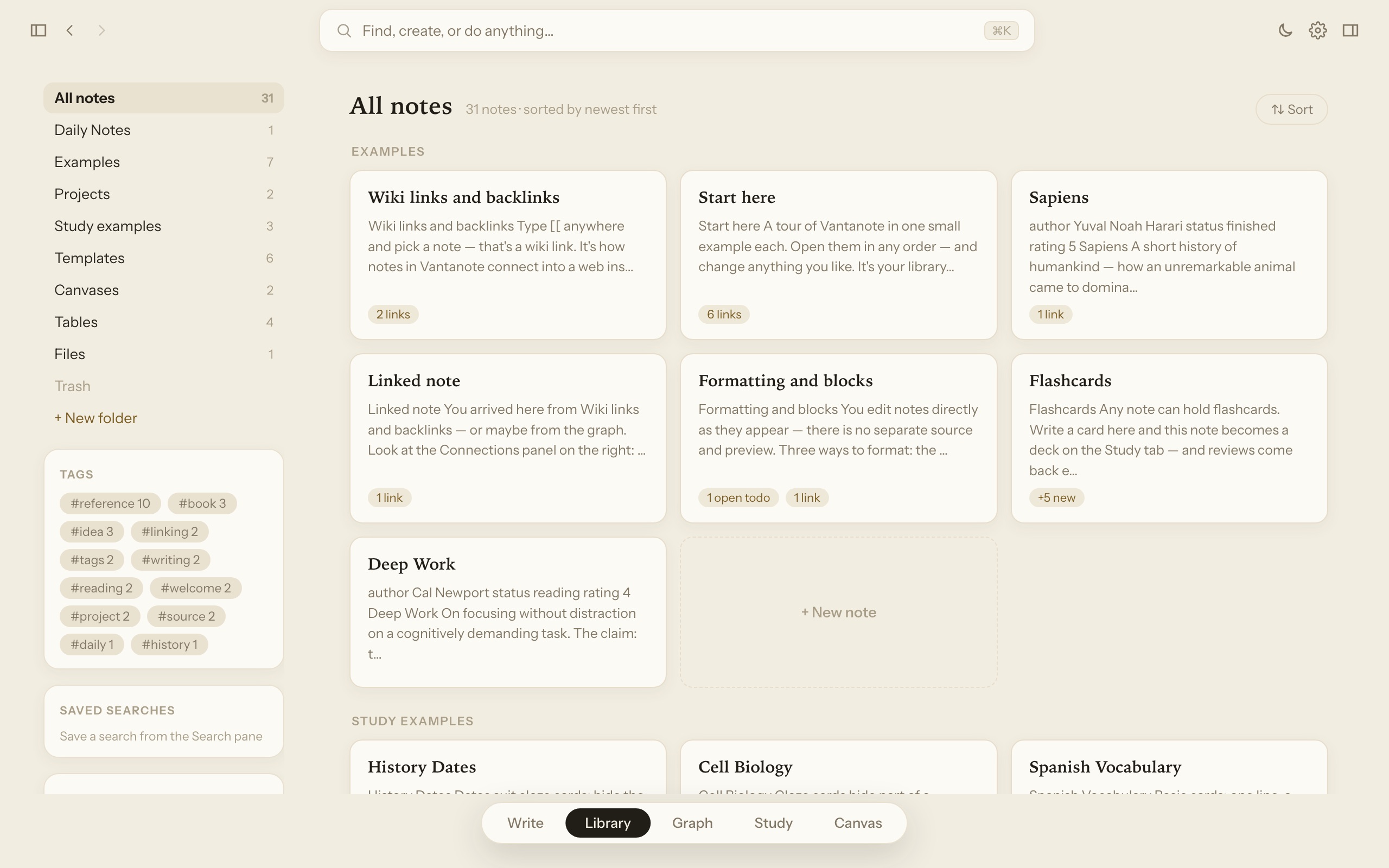
Type [[ inside any note to link it to another — the way your thoughts actually connect. Open a note and its Connections panel shows every note that points to it, every note it points to, and even notes that mention it without a link.
- Checklists, tables, images, and callouts with a single keystroke
- Daily notes and a calendar for journaling and planning
- Search that finds words inside every note, instantly
In plain words: it's like your notes get a "related pages" list that fills itself in. You never have to remember where you wrote something — you just follow the links.
See the whole picture
A living map of everything you know
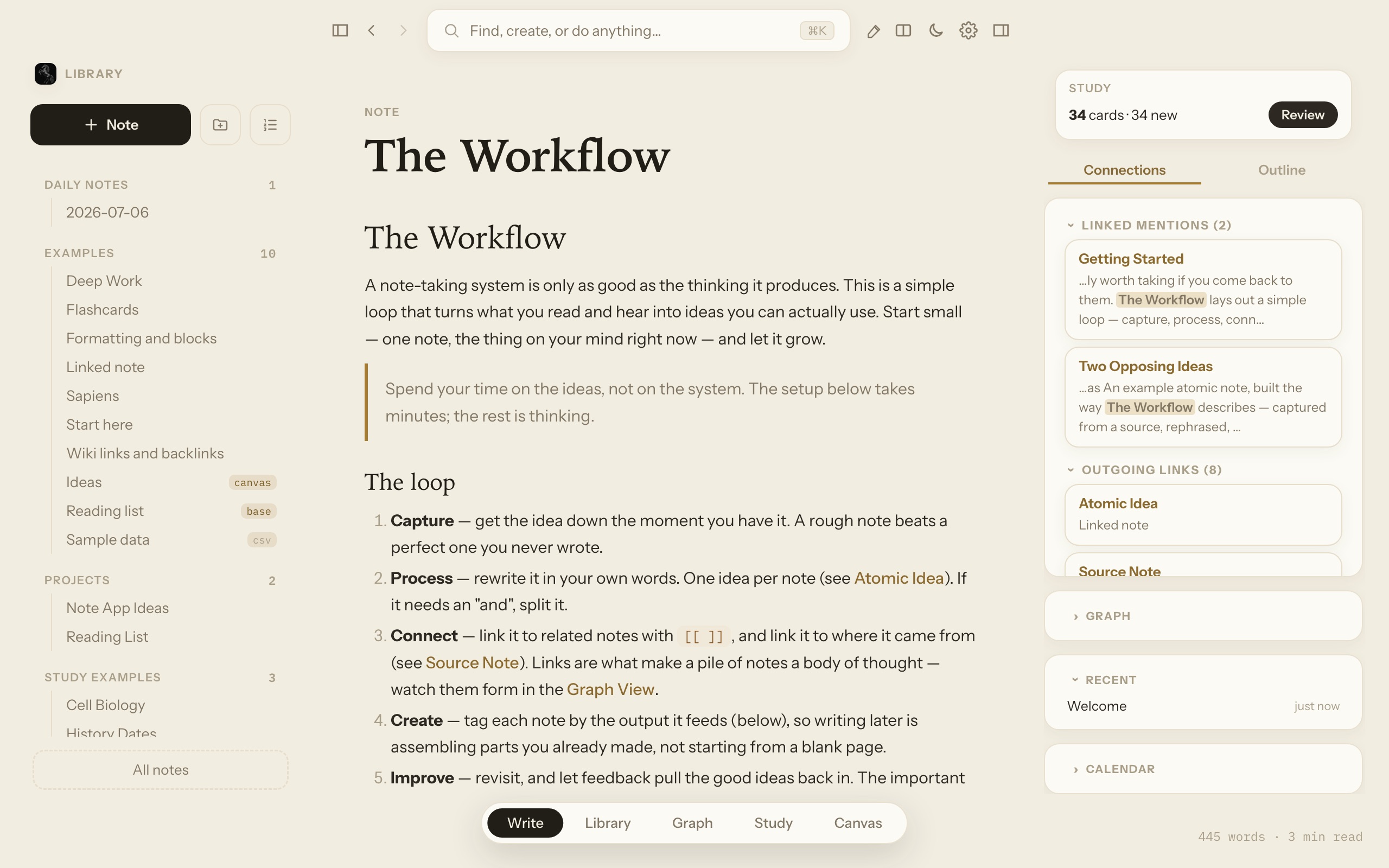
The graph view draws your whole library as a constellation: every dot is a note, every line is a link you made. Clusters form around the things you think about most — and clicking any dot opens that note.
- Color groups by topic, folder, or tag
- A local view that shows just one note's neighborhood
- A timelapse that replays how your library grew
In plain words: imagine pinning every note to a corkboard and running strings between the related ones — then seeing the whole board at once. That's the graph, and this screenshot is a real library.
Spreadsheets built in
Edit Excel and CSV files without leaving your notes
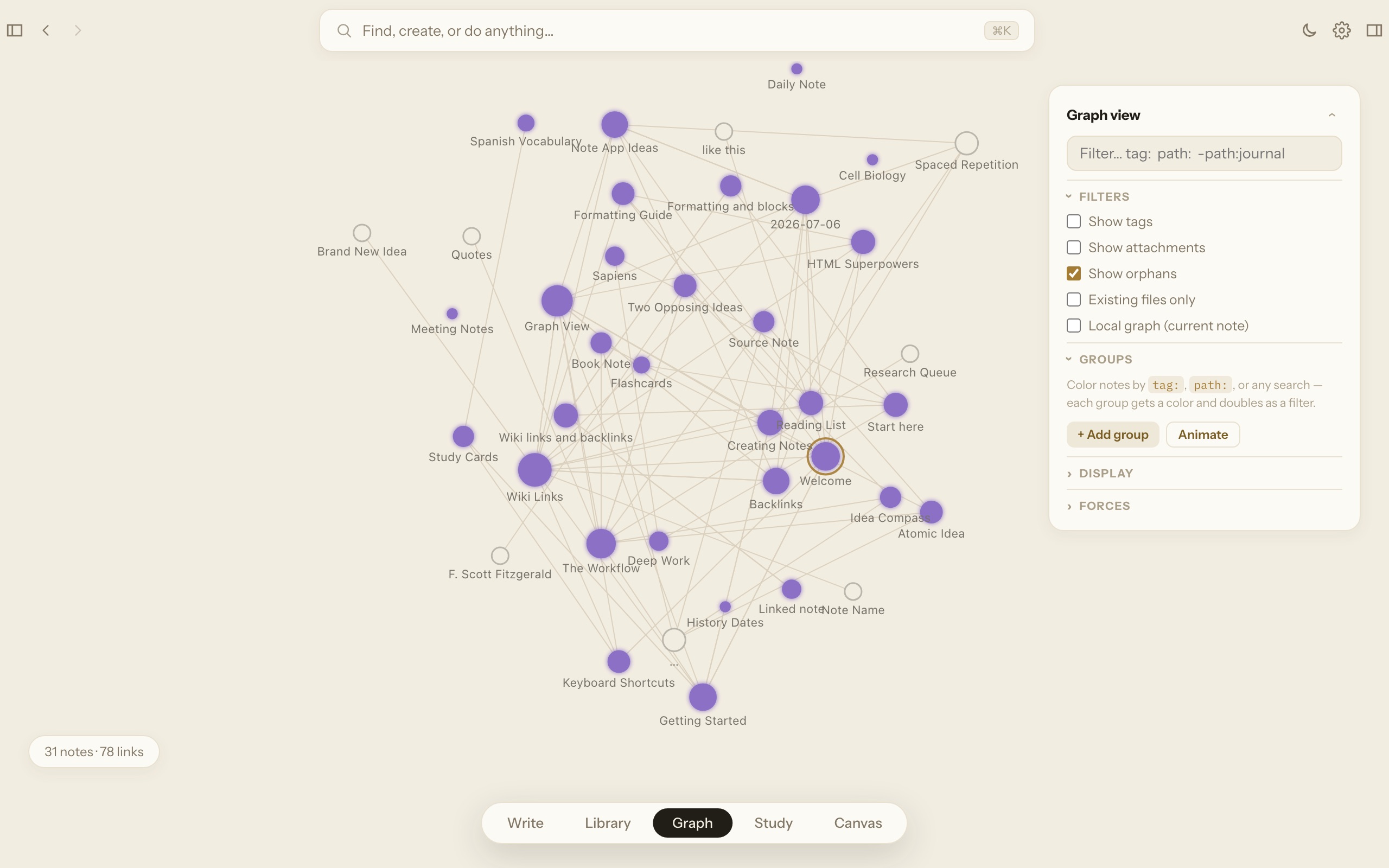
Drop a budget, a price list, or a workout log into your library and open it like a spreadsheet — because it is one. Click a cell and type. Add rows, sort columns, filter, and paste to and from Excel or Google Sheets. Every change saves back to the same file automatically.
- Works with .xlsx, .xls, and .csv files
- Excel formulas are preserved and recalculate when the file opens in Excel
- Link any sheet from a note — "review the [[Household Budget.xlsx]]"
In plain words: the file on your computer stays a normal Excel file. Vantanote just lets you open and edit it in the same place you keep the notes about it.
Browse everything
A home view that shows your whole library as cards
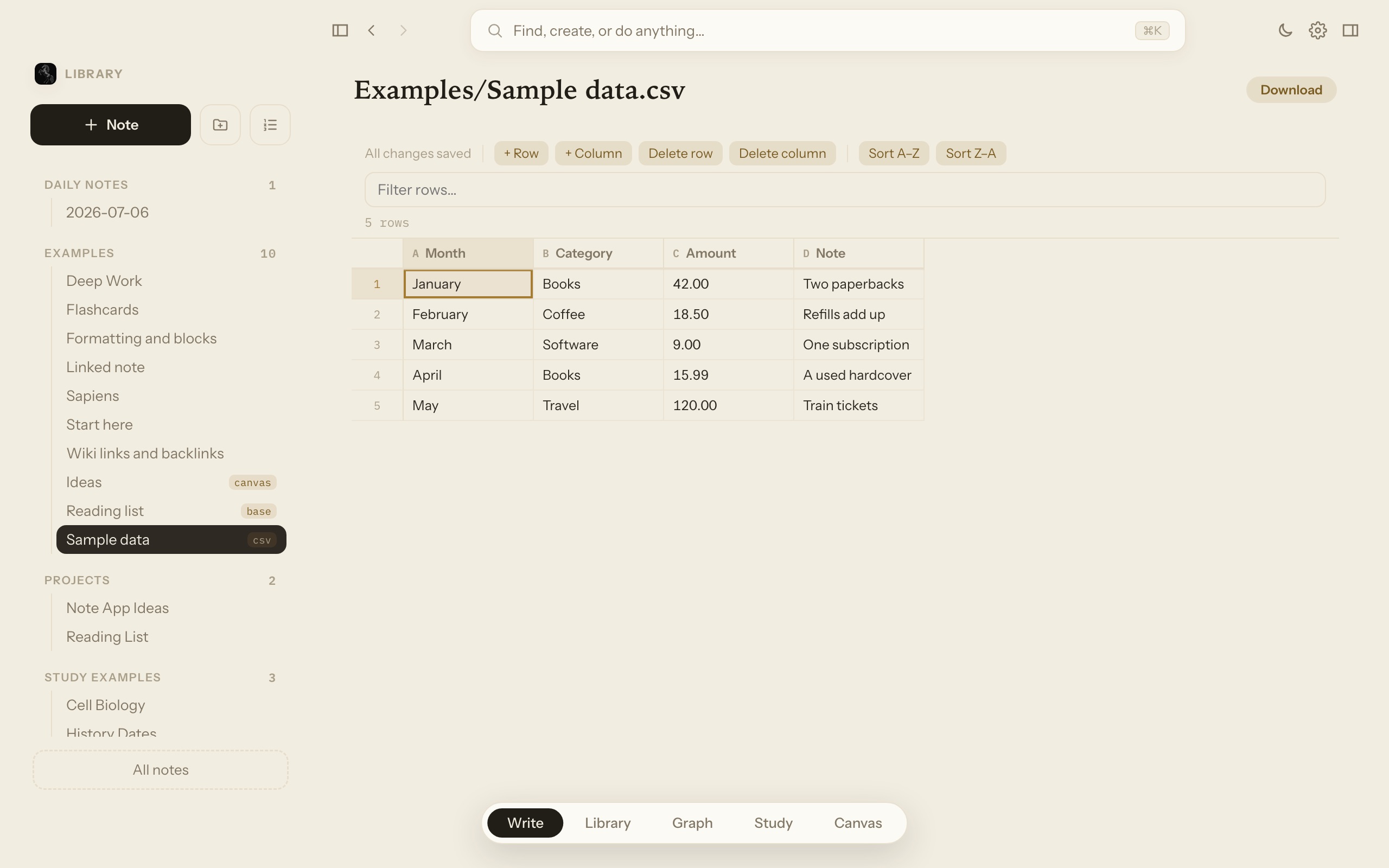
The Library page lays every note out as a card, grouped by folder — with your tags, saved searches, and bookmarks alongside. Cards show what's inside: flashcards due, open to-dos, links. Type in the search bar and the grid filters live.
- Folders with counts, plus canvases, tables, and files in one list
- Study chips show which notes have cards waiting
- PDFs, Word docs, and voice memos live here too — they open full-page, right inside
In plain words: it's the "everything at a glance" view — like laying your notebook's pages out on a big desk, already sorted.
Your day
Open it in the morning and it already knows
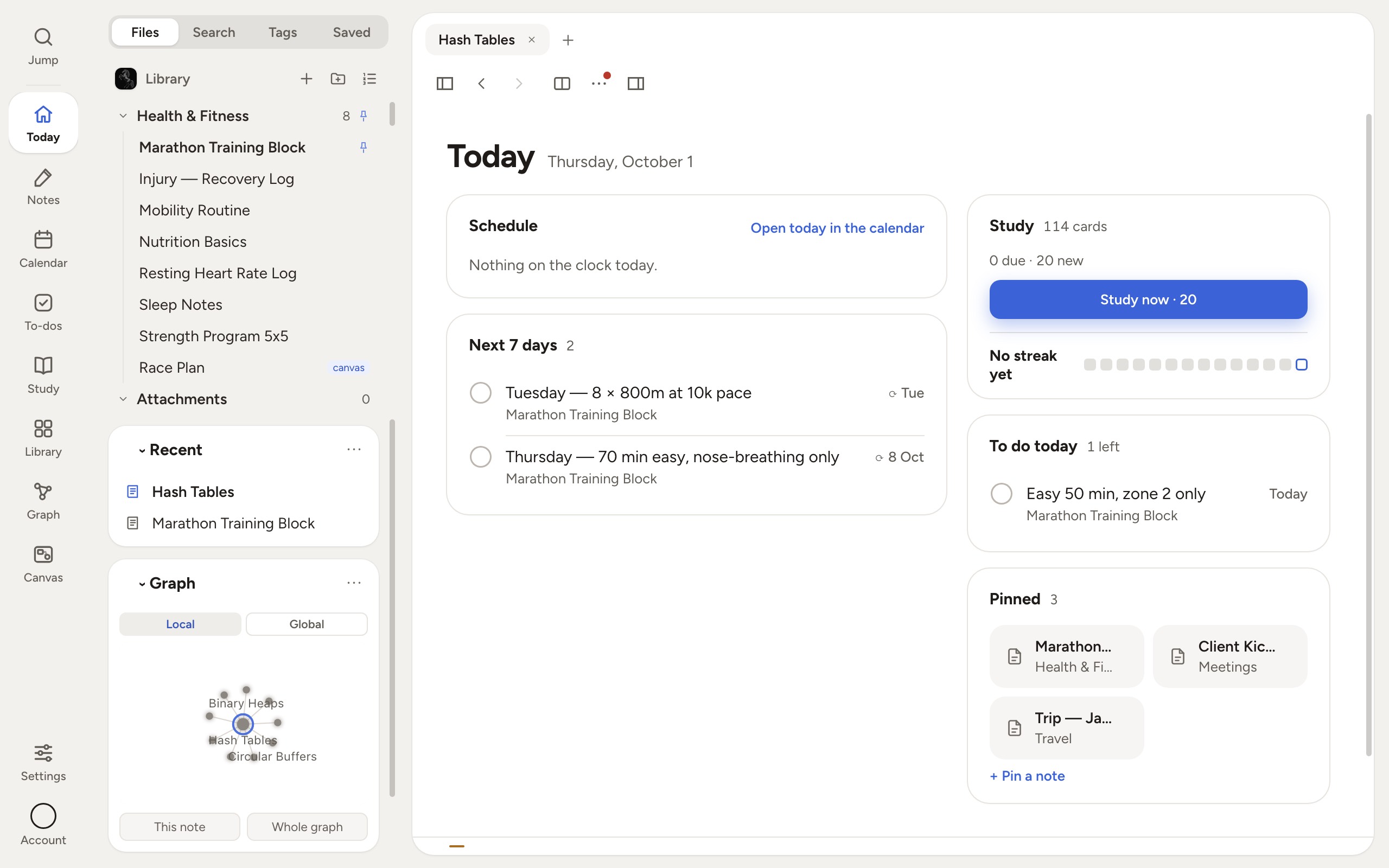
Today is the page you land on: what is on the clock, what is due, the cards waiting, the notes you pinned. None of it is a dashboard bolted on beside the app — every tile is the app's own machinery, looking at the same files you write in.
- Write due:2026-10-11 on a checkbox and it turns up here, there and on the calendar — one line in one note, three places that read it
- To-dos gathers every open box in the library; tick it there and it is ticked in the note
- Calendar runs Day, Week and Month, with Google or Outlook events on the same grid
In plain words: you never keep a second list. The checkbox you typed into a note three weeks ago is the thing the calendar is showing you.
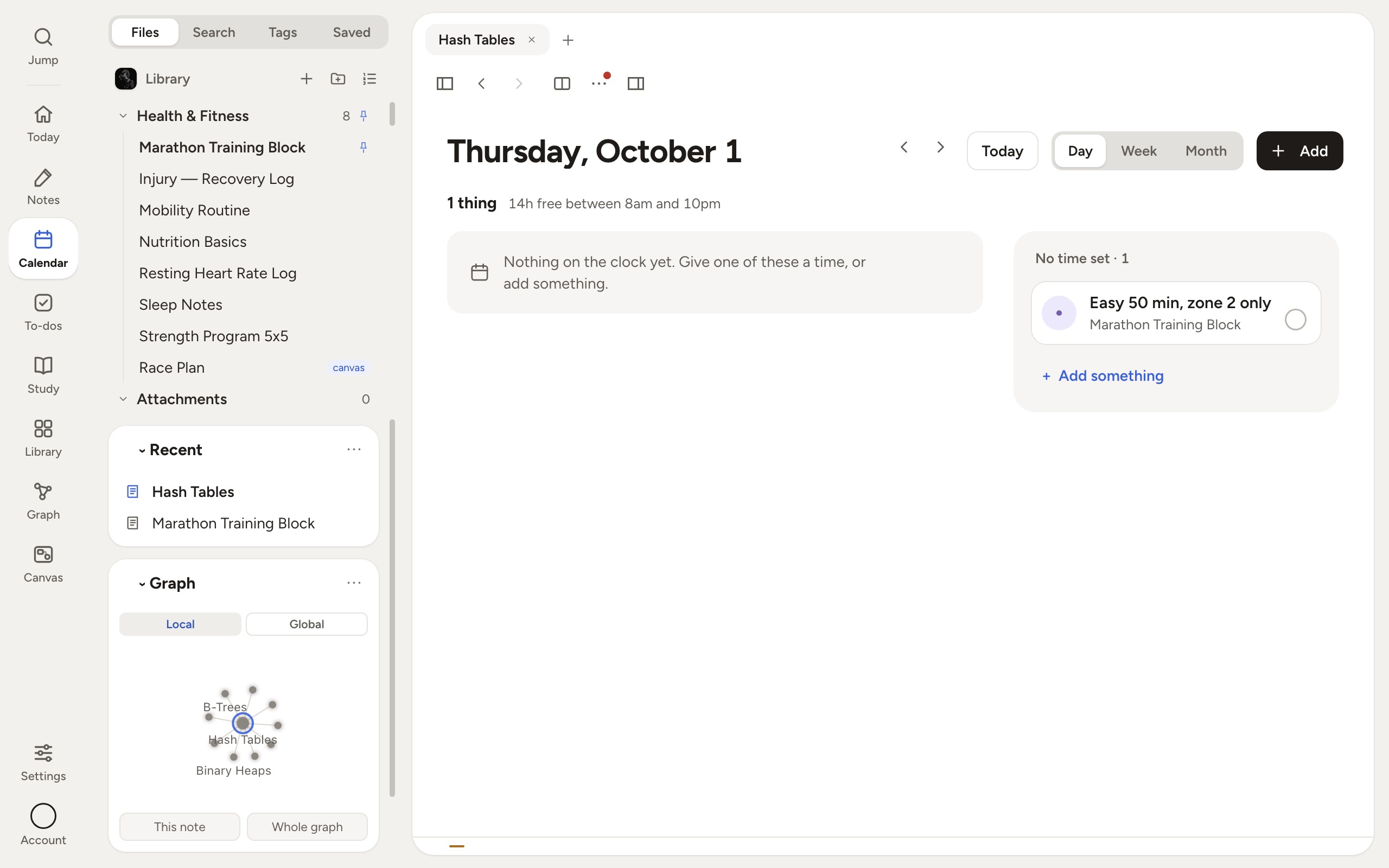
Calendar — the day, the week or the month, with your dated to-dos on it
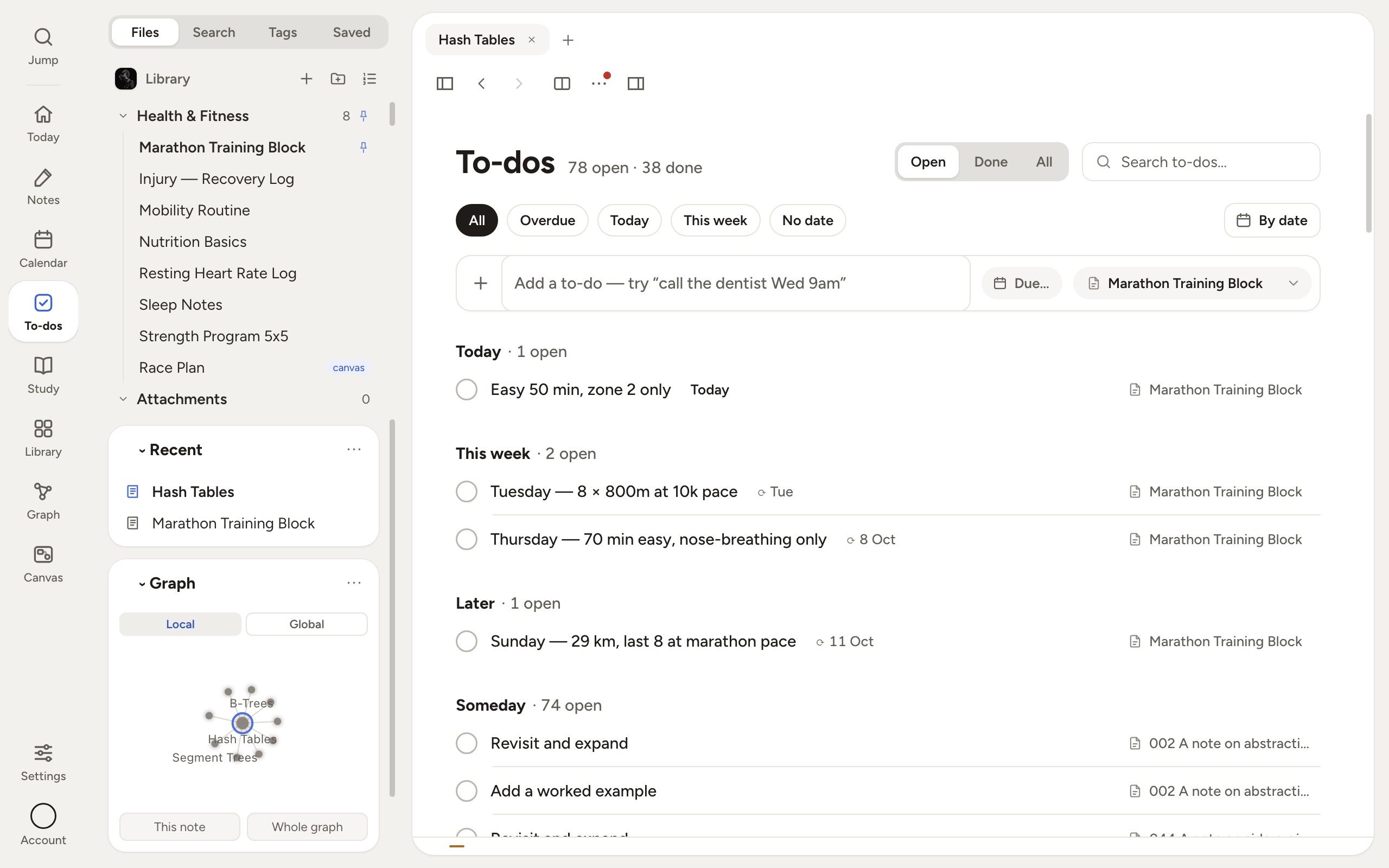
To-dos — every open box in the library, grouped by when it is due
Study & remember
Turn any note into flashcards that quiz you
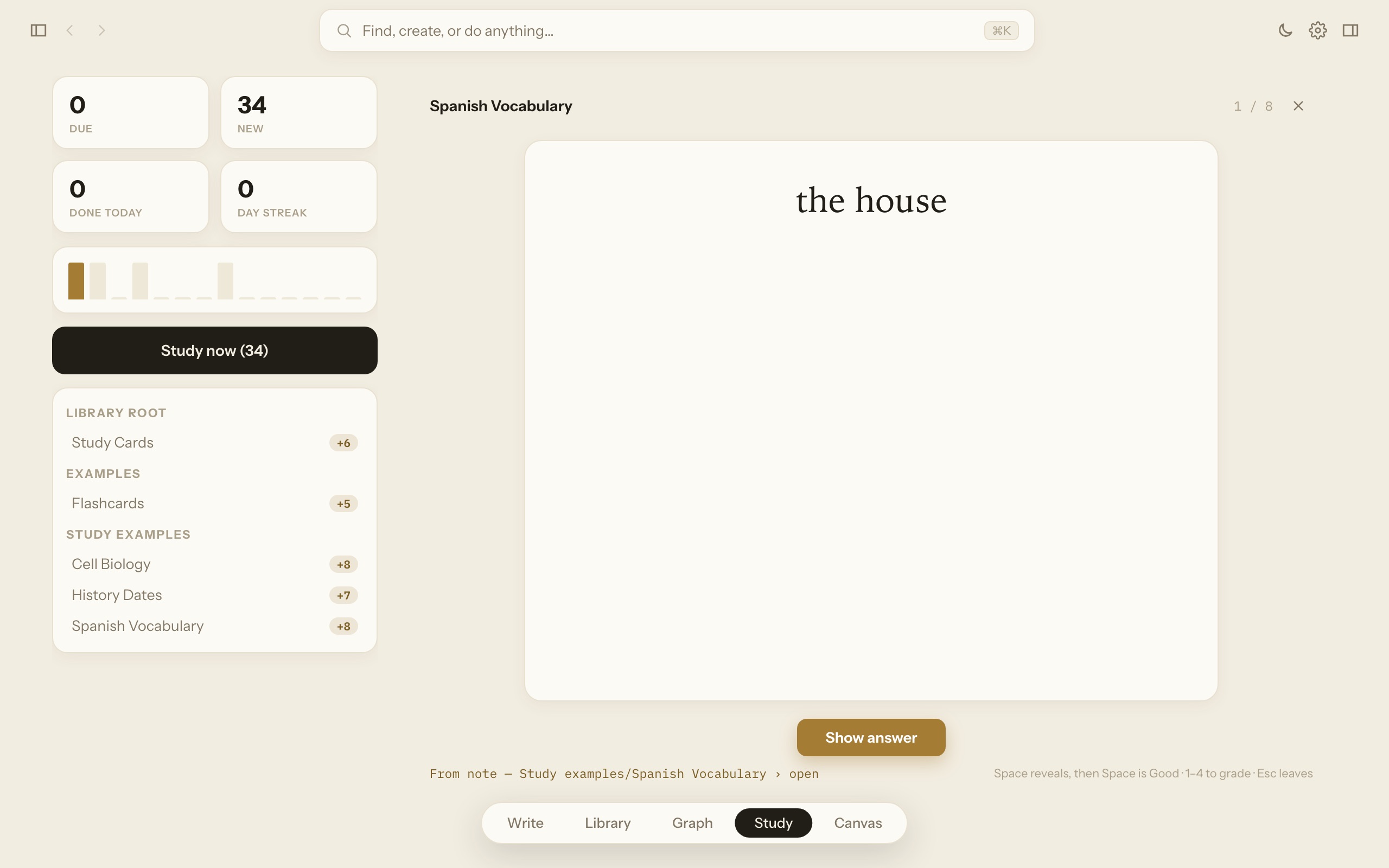
Write question :: answer on a line and that note becomes a deck of flashcards. Vantanote schedules each card using spaced repetition — a memory technique that shows you a card again right before you would forget it, so reviewing takes minutes, not hours.
- Type /quiz for a multiple-choice question — fill in the answers and tick which are right. Tick two and it becomes “select all that apply” on its own. Nothing to learn, nothing to type in code
- Every quiz question is a flashcard too, so one question carries one history
- The Study page shows what's due today, your streak, and every deck
- Set a "know it by" date and the app paces you to meet it
- Made for exams, languages, licensing tests, and trivia nights
In plain words: it's a built-in quiz machine. The app remembers which facts you find hard and asks about them more often — the same technique medical students use to memorize thousands of facts.
Think spatially
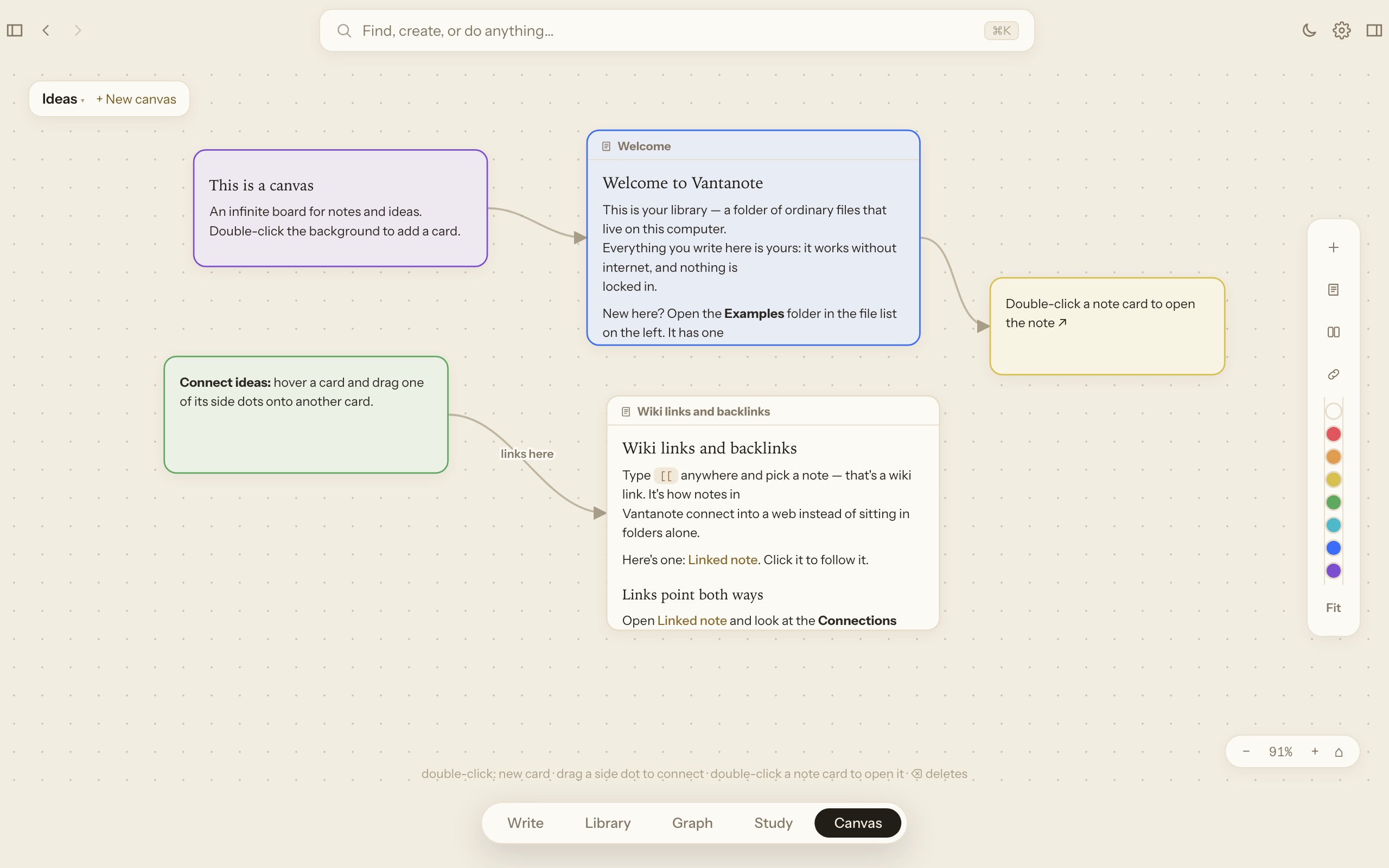
An infinite board for the messy middle
Some thinking doesn't fit in a line. Canvas gives every idea a card on an endless board — drag them around, draw arrows between them, drop whole notes on as live cards, and zoom out to see the plan.
- Text cards, note cards, groups, arrows with labels, colors
- Double-click a note card to jump into the note
- Boards are files in your library, like everything else
In plain words: it's a whiteboard that lives inside your notebook — for planning a project, plotting a story, or untangling a decision.
The whole app
Eight pages, and what each one is for
This is the complete list — the same eight buttons the app itself puts down the side, in the same order, under the name the app gives them. Nothing here is a preview or a plan. Keep the ones you use and switch the rest off: the app asks which you want on your first run, and Settings changes it whenever you like.
Where you land. Today’s date and what is on it, your pinned notes, the cards due, your streak, and the day’s calendar — built from the app’s own parts rather than a dashboard beside them.
The page you spend the day in. One column of words, your folders on the left, and panels either side you fill with whatever you want in view. Two notes at once when you want them — click either and you are writing in it.
Everything as cards, grouped by folder, with tags, saved searches and bookmarks alongside. PDFs, Word files, spreadsheets, boards and voice memos sit here too, and open full-page right inside.
Your library drawn as a constellation: a dot per note, a line per link. Colour by folder or tag, narrow it to one note’s neighbourhood, or replay how the whole thing grew.
Flashcards made out of your own notes. What is due today, every deck, a forecast, and a “know it by” date that paces the reviews to meet it.
Every open checkbox in the library on one page, grouped by when it is due or by the note it came from. The page is a lens over what you already typed, so ticking it here ticks it there — there is no second copy to keep in step.
Day, Week and Month. Your dated to-dos and your Google or Outlook events on the same grid, with a note attachable to any day — and the meeting’s notes beside it.
An endless board for the thinking that does not fit in a line: cards, groups, labelled arrows, and whole notes dropped on as live tiles you can double-click into.
And the things that are not pages
The rest of it, listed plainly
Smaller than a page each, and between them most of what you will actually touch.
Make it yours
One app, five completely different feelings
Twenty-six themes and four surface materials — the same library, dressed how you think best. Every screenshot below is the real app showing the same kind of note.
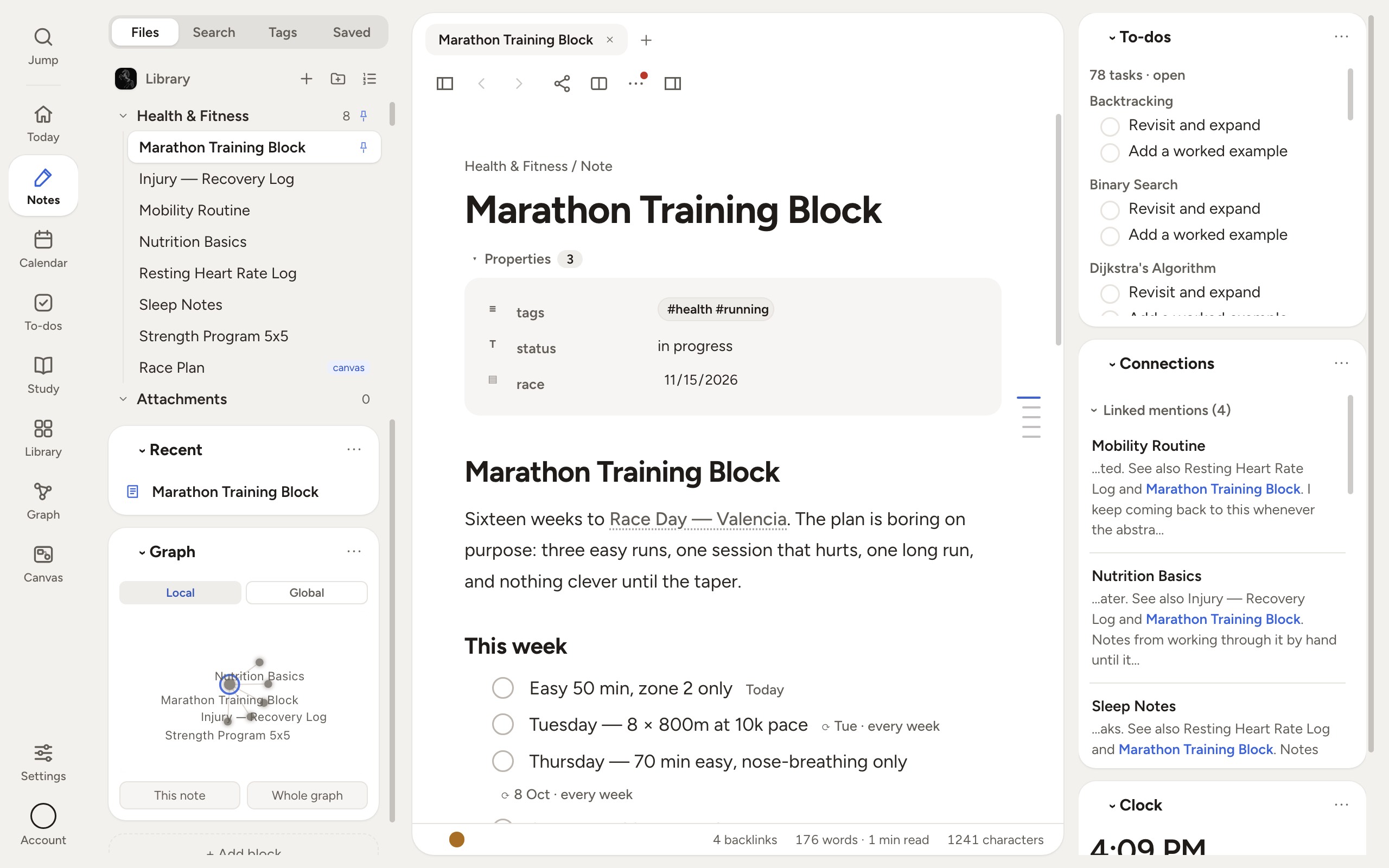
Daylight — what a new library opens as: a dock on the left, tiles on a warm desk
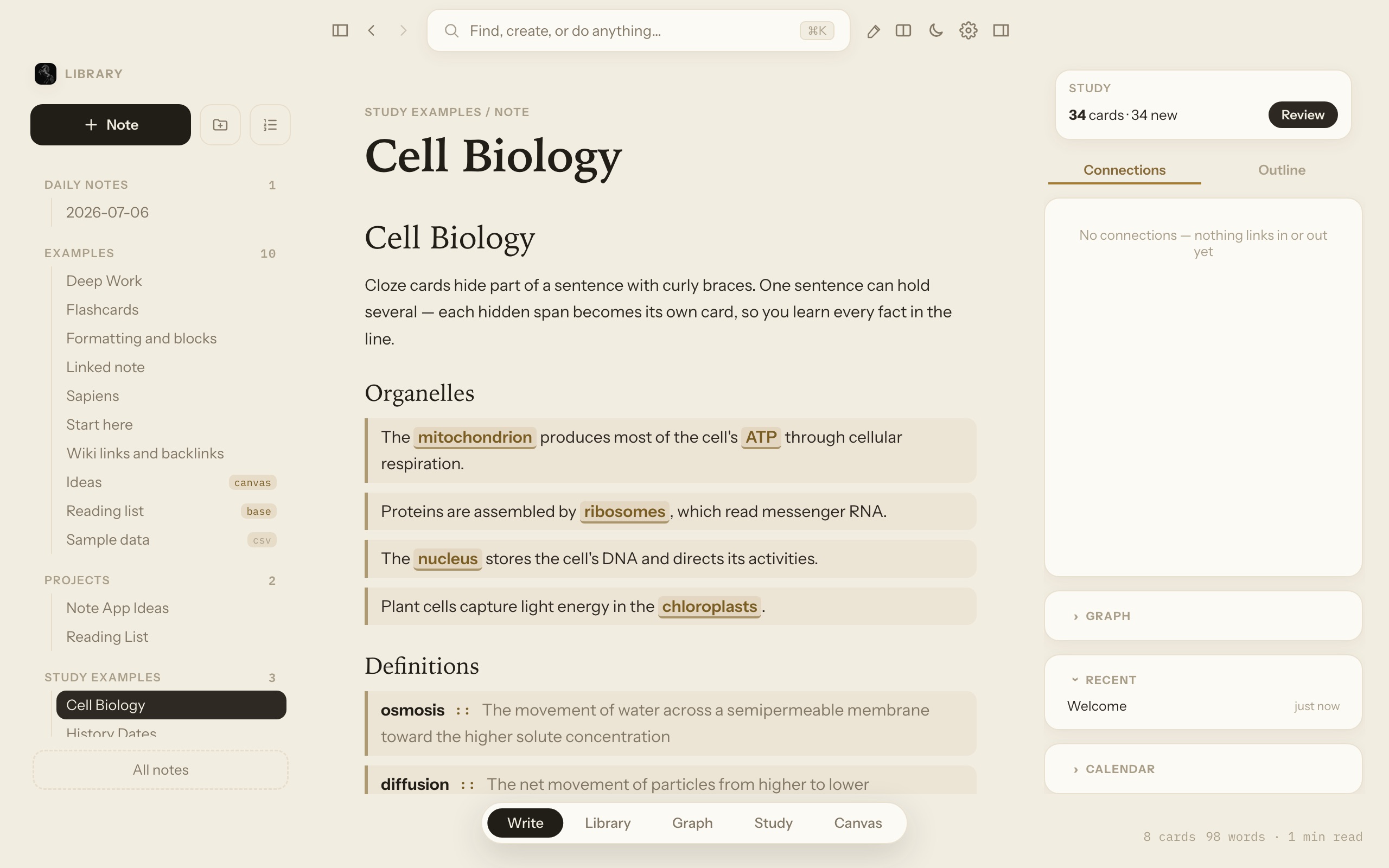
Reading Room — one continuous warm page; only soft cards float
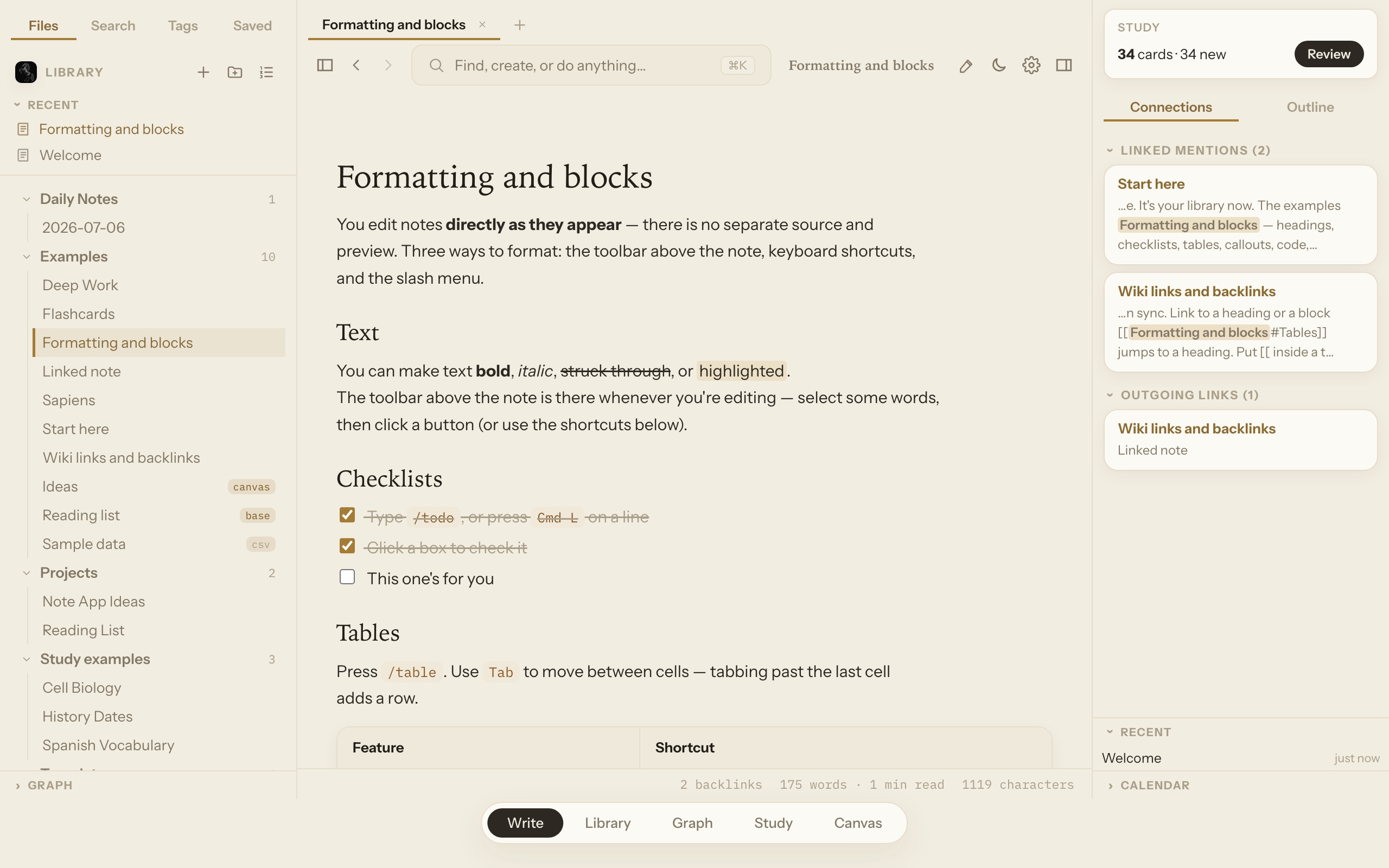
Engraved Paper — a flat sheet with hairline dividers
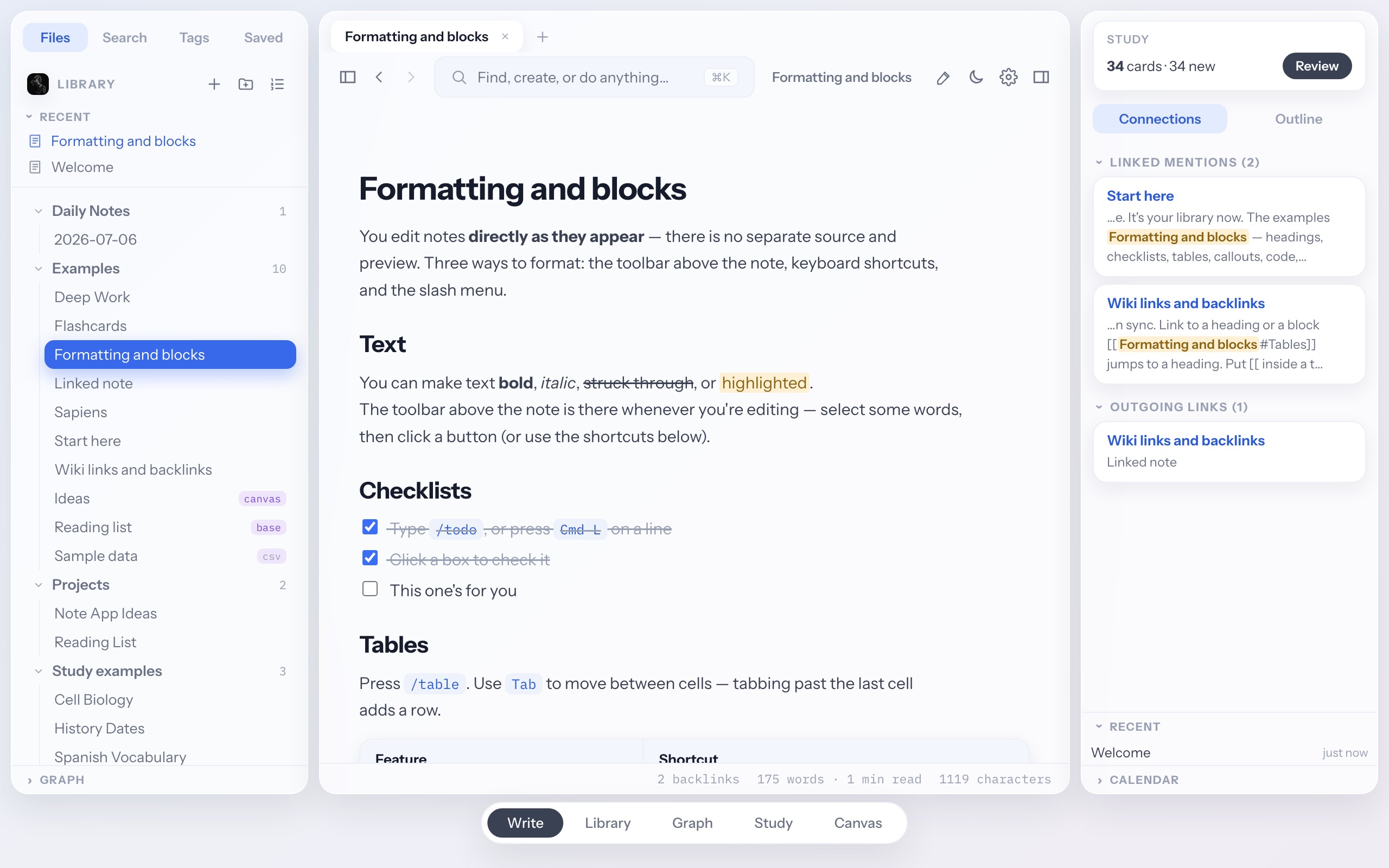
Frosted glass — floating panels over a soft gradient
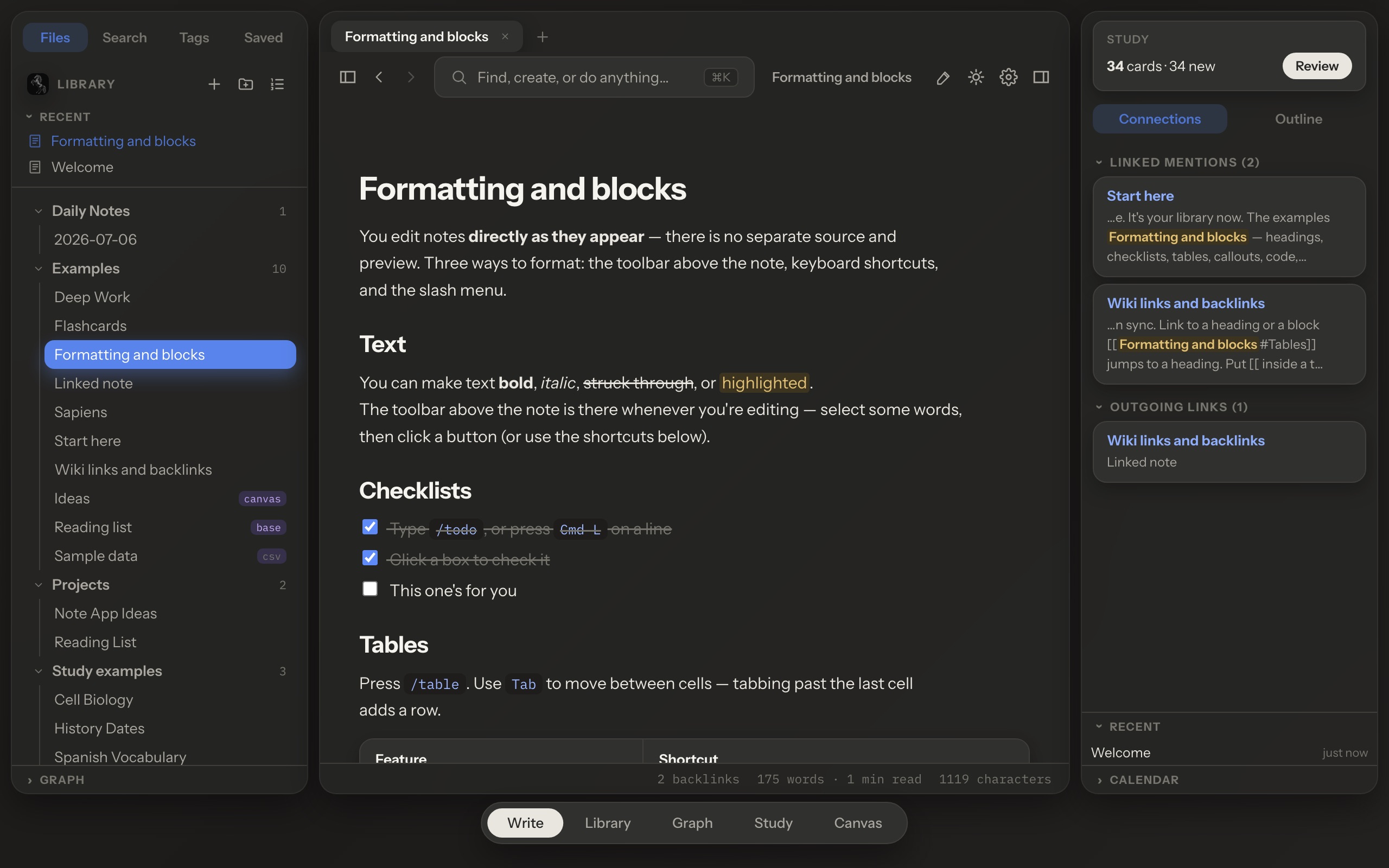
Dark — the same rooms, lights down
Plus custom accent colors, folder colors and icons, and every keyboard shortcut rebindable.
And the workspace itself moves
The panels either side of your writing aren't fixed furniture. Drag them wider, hide either one with a keystroke, and fill them with the things you actually want in view.
Widgets on both sides
A clock, a timer, a pomodoro, a countdown to a deadline. Your open to-dos pulled from every note, a live list of whatever you can describe, a scratchpad that files a thought into your inbox, today's flashcard count. Add them to either panel, drag them into the order you want, drop the ones you don't.
Panels that fit your screen
Drag either sidebar wider or narrower and it stays that way. Hide the file list with ⌘\ or the connections panel with ⌘⇧\ when you want nothing but the page. Even the built-in sections can be switched off.
A file list you arrange
Drag notes and folders above or below each other into an order that means something to you, pin what you reach for daily, and hide anything you don't want in the writing view — it stays in your library, just out of the way.
Everything here is remembered per device, so a laptop and a desktop can be set up differently — and none of it touches the files in your library.
Who it’s for
Two people, one library
The same eight pages do very different work depending on who is sitting in front of them. Here is what a term looks like, and what a week of work looks like, with nothing in either that the app cannot do today.
For students
From the first lecture to the exam
Everything a course generates — the lecture, the slides, the reading, the problem set, the facts you have to know cold — ends up in one place that is still readable in ten years.
Nothing here costs anything. A free account is all the browser version needs.
Write the way you always have. Type [[ and this week’s lecture is joined to the one it builds on; the Connections panel on the other lecture fills itself in without you going back. Six weeks later you follow the link instead of remembering the file name.
Drag in the lecture PDF, the Word handout, the dataset as a spreadsheet. They open full-page inside Vantanote rather than in three other apps, and you can link a note straight at one. Open two notes side by side — the reading on one half, your own words on the other — and write in whichever you click.
Write mitochondrion :: the cell’s power plant on a line and that note is a deck. The Study page schedules each card with spaced repetition, so it comes back just before you would have forgotten it. Give a deck a “know it by” date and it paces the reviews to land on the exam.
Put due:2026-12-11 on a checkbox and it becomes a quiet date chip; every:week brings the problem set back every week and skips the ones you missed. The To-dos page gathers every open box in the library onto one screen, and the Calendar puts them on the same grid as your Google or Outlook timetable.
A Micro-breaks widget stops you for ten seconds at a random moment, about once every two minutes of study. Ten seconds is the rest length the lab work used; the two-minute average is Huberman’s own figure. It promises nothing about consolidation — short, fully disengaged breaks are a good way to study whatever the mechanism turns out to be, and every number is yours to change.
Download a note as a PDF, as an editable Word file with every picture at the size it is actually drawn, or as the Markdown file itself. When the degree ends, one click writes the entire library to a zip on your own disk — every note as text, every PDF and spreadsheet as the original.
For work
A week of client work, in one library
Projects, clients and cases generate the same mess as a course: notes, contracts, spreadsheets, meetings, follow-ups. The difference is that somebody is paying for it to be findable.
One step here — locking a note — only works in the desktop app, and it says so where it appears. The rest is the same in a browser tab.
The contract PDF, the price sheet, the scope document and your running notes live together and link to each other. Open the spreadsheet and edit it in place — it is still a real .xlsx, formulas intact, and Excel will open it tomorrow exactly as it always did.
A note can be a database of other notes: each client is a row, with a status, an owner and a date. Then look at it as a table, or as a kanban board you drag across, or as a calendar, or as a chart — all of the same notes, none of it a second copy.
Home opens on today: what is due, what you pinned, the day’s meetings. Panels either side hold a countdown to the deadline, your open to-dos pulled from every note, a live list of whatever you can describe, and a scratchpad that files a passing thought into your Inbox without losing your place.
Send a read-only link and the other side needs no account at all — they open the page and read it. Send an edit link and they get a button: Add to my library. The note lands in their library, marked as shared, opens in the real editor, and what they type reaches your note within seconds — you can see who is in it and which paragraph they are working in. Edits made at the same time are merged; if you both change the same line, the one saved first stays and the other person is shown theirs. You decide, person by person, who can edit, who can only read, and who is removed. No account yet? They make one on that page, in two fields. Every link is revocable.
Connect the assistant you already pay for and it reads your notes, searches them, writes new ones, edits one section of a long document without touching the rest, and renames or moves things with every [[link]] following along. It opens your PDFs too, including decks that are only pictures of slides. Anything tagged #no-ai stays invisible to it.
Some notes are nobody’s business. Lock one and its text is encrypted inside the file itself — open it in Finder, on another machine, in any other app, and there is nothing to read. There is no password reset, on purpose, which is why the lock screen makes you work for it.
And everyone else
If you think by writing, it was built for you
Writers, journalers & researchers
A second brain that maintains itself
Sources, ideas, and daily pages, with backlinks that appear on their own and a graph that surfaces connections you'd have missed. Reading Room makes it feel like paper, not software.
Home & family
The household’s second brain
The budget spreadsheet, the insurance PDFs, the renovation notes, the packing checklist for the trip — all in one place, linked together, and open on every computer either of you signs in on.
Developers & technical teams
Plain text, done right
A Markdown-native home for docs, specs, and runbooks — plain files that play well with git and open in any editor, with code blocks, diagrams, and tables built in.
Consultants, lawyers & small business
The ones nobody else gets to read
Client and case notes with the contract PDF and the price sheet you can edit in place beside them, everything two clicks away. On the desktop app you can lock the sensitive ones behind a password, or keep the whole library in a folder on your own computer and never sync it at all.
Anyone who sits in meetings
Record it and stop thinking about it
Hit record on the desktop app and your microphone and the call are captured as separate tracks, so a transcript can say who spoke without guessing; the calendar names the recording after the meeting and fills in who was invited. Turning the audio into words runs on the desktop with your own OpenAI key, added once in Settings. Say “action item” out loud and it lands as a checkbox you will find afterwards.
Teams & small studios
A shared brain, on the way
Today you can hand one note to somebody and have it land in their library, editable, with their changes coming back to you. Two people typing in it at the same second, and shared spaces — a folder several people build in together — are the next chapter, so the knowledge base grows with the group.
What's next
A lot is here. More is on the way.
These aren't vague someday-maybes — they're the next chapters, being built toward openly. Plain Markdown stays the foundation: whatever gets added, your library is text you can export in one click and read without us.
Your library, on every device
Sign in and the same library opens on each computer you use. Files move over an encrypted connection into storage fenced off from every other account — though not from us; we run those servers and hold their keys. Your notes stay Markdown, and you can export the whole library whenever you like.
Lock a note with a password desktop
Some notes are nobody else's business. Lock one and its text is encrypted on disk — open the file in Finder, on another machine, in any other app, and there is nothing to read. Inside Vantanote it keeps its name and loses everything else: no search results, no tags, no graph edges, no to-dos, and the assistant is refused it outright. There is no password reset, on purpose — which is why the lock screen makes you type it twice and confirm before it will do anything.
Deadlines that live in the line Ready
Write due:2026-08-14 on any checkbox and it becomes a date — shown as a quiet chip, not a wall of chrome. every:month keeps the original rhythm and skips what you missed, so rent is still due on the 1st however late you were; after:3days counts from the moment you tick it, so the plant gets watered three days after you actually watered it. Notifications when things come due, a bell for what is late, and the characters stay in your file — a date is always something you can retype by hand.
Sync that lands in seconds Ready
Edit on one computer, watch it appear on the other a few seconds later — hands-free, over an encrypted connection. Offline edits catch up the moment you're back.
Share a note, and share editing it Ready
Send a read-only page to anyone — no account needed on their end, and it opens on any device. Or send an edit link: the other person sees the note first, then adds it to their own library with one button, where it sits with their notes and opens in the real editor rather than a web box. Changes travel both ways within seconds and are merged, and you can see who is in the note and where. Each person's access is yours to change — edit, read only, or removed. They can make an account on the page itself if they have not got one. Revocable any time.
Databases, boards & charts Ready
Any note can become a database of other notes — then render as a table, a kanban board, a calendar, a gallery, or a chart. And any table in any note can chart itself, honestly, with one click.
AI on your terms desktop · your own key
Ask questions and get answers from your own notes, with citations that only become links when the note really exists. Make flashcards from a page, get a hint on a card you keep failing, tidy formatting without a word changing. Keep any note or folder permanently invisible to it, and see what it has cost you — today, this month, and all time.
Being straight about where this runs: you add your own Anthropic or OpenAI key in Settings, and the desktop app talks to that model directly, billed to you and metered by nobody. A browser tab has no process to run it in, so this half is not in the web app. AI that Vantanote pays for is built and switched off — when it is turned on it will be a paid thing, and nothing on this site can be bought today.
Claude and ChatGPT, working in your library Ready
Connect the assistant you already use and it can read your notes, search them, write new ones, edit one section of a long note without touching the rest, and rename or move things with every [[link]] following along. It opens your PDFs too, including lecture decks that are only pictures of slides. Deleting puts a note in the trash, not the void. Notes you tag #no-ai and folders you hide stay invisible to it.
Meetings that write themselves desktop · your own key
Record a meeting and get it back knowing what it was called and who was in it. Your voice and the other side are captured as separate tracks, so the transcript says who spoke without guessing. Say “action item: send Alice the deck” out loud and it becomes a checkbox while you are still talking. Recording works wherever the desktop app does; turning the audio into words uses the OpenAI key you added in Settings.
Your calendar, connected Ready
Connect Google or Outlook, read-only. A recording made during a meeting names itself after that meeting, fills the speaker list from the invitation, and your day’s events sit under the month grid. Connect once and every computer you sign into is connected.
Shared spaces for work Soon
Invite people into a folder and build a knowledge base together — a collaborative layer over files you still own.
Vantanote on your phone Soon
Your whole library in your pocket — same files, same links.
Plain words
The jargon, translated
Words you'll meet around apps like this — and what they actually mean.
- Markdown the file format
- A way of writing plain text so that **bold** means bold and # Heading means a heading. You never have to see it — Vantanote shows you normal formatted text — but underneath, your notes are simple text files any computer can read. That's what makes them yours forever.
- Local-first
- An app whose home is your computer rather than a company's server: files live with you and the cloud is an optional extra. That is exactly how the Vantanote desktop app works when you point it at a folder. In the browser it is the other shape — your library is in your account — which is why the promise here is the format and the export rather than the location.
- Wiki link [[like this]]
- A link from one of your notes to another, made by typing two square brackets and a name. Named after Wikipedia, where every article links to related articles — your notes get the same superpower.
- Connections (backlinks)
- The list of notes that link to the one you're reading. You link "Trip to Lisbon" from your budget; open the budget later and Connections shows the trip note automatically. You build the trail once and it works in both directions.
- Graph view
- A picture of your library: each note is a dot, each link is a line. It's not just pretty — it shows which ideas are becoming central and which notes are orphans you've forgotten about.
- End-to-end encrypted E2EE
- Scrambled on your computer before it travels, and only unscrambled on another of your computers. The company running the servers holds nothing but unreadable bytes. Worth knowing what the term means — but Vantanote does not do this today. Sync is encrypted in transit and at rest instead.
- Spaced repetition
- A studying technique backed by a century of memory research: review a fact right before you'd forget it, and the memory lasts far longer each time. Vantanote does the scheduling; you just answer cards for a few minutes a day.
- Sync
- Keeping the same library on more than one device. Edit on your desktop, and your laptop has it too. In the browser there is nothing to switch on: your library is already in your account, and signing in anywhere opens it. In the desktop app, pointed at a folder, sync is off until you create an account and turn it on — and you can sync everything or only chosen folders.
- Library
- Vantanote's word for your collection of notes and files. In the desktop app it is literally a folder on your computer; in the browser it is the same Markdown kept in your account. You can have several (say, Personal and Work) and switch between them.
Get Vantanote
Open it in a browser tab
Create a free account and your library is there — nothing to download, no invite to wait for. Sign in on another computer and the same notes, files, search and history open on it. The macOS and Windows apps go out by personal invite; they add what only a desktop can do, and they can keep your library as a folder of files on your own disk instead of in your account.
any modern browser, nothing to install · macOS (Apple Silicon) and Windows 10/11, auto-updating, by personal invite
Fair questions
Things you might be wondering
Is it really free?
The app is, permanently — writing, organising, databases, boards, charts, flashcards, all of it, with no time limit. In the browser you need a free account, because your library has to live somewhere; the desktop app pointed at a folder on your own computer needs no account at all.
What will eventually cost money is the part that genuinely costs money to run: keeping a copy of your library in sync between computers, hosting the pages you share, and paying for the AI. None of that is for sale yet, and there is no way to pay on this site.
Where exactly are my notes?
It depends which one you use. In the browser they live in your Vantanote account, and Settings → Library writes the whole lot to a zip on your disk whenever you want a copy that owes us nothing. The desktop app can keep them in a folder instead — by default Documents/Vantanote Vault on your Mac or PC. Open it in Finder or File Explorer any time; you'll see one file per note, and Time Machine or File History already back it up.
Can you read my notes?
We don't — but we would rather tell you what that rests on than let you assume something stronger. Your library travels over an encrypted connection into storage no other account can reach, on disks our host encrypts. That stops another customer and it stops a stolen drive. It does not stop us: we run those servers and hold their keys, so a synced note is one we could read and choose not to. End-to-end encryption, which would make it impossible rather than merely forbidden, is not something Vantanote does today.
Two features do read your notes, because you asked them to. The assistant in the desktop app sends the notes it needs to a model you pay for with your own key — we never see that traffic and never hold the key. The connector hands notes to Claude or ChatGPT once you link them. Both are off until you turn them on, and anything you tag #no-ai or hide stays invisible to both.
A note you share is the one deliberate exception, and it is one you make per note: its text is stored so the page can be rendered to whoever has the link, and anyone you send it to can keep it in their own library. Nothing else travels with it — not the folder it was in, not your other notes, not your email address; the people in the note see your name. You see the name and email of each person who adds it, and they are told that before they do. Stop sharing and the link dies and it leaves their library.
For the notes where that isn't enough, the desktop app can lock one with a password: its text is encrypted in the file itself, so it is unreadable even to someone sitting at your unlocked computer with Finder open.
What if I forget a note's password?
Then that note is gone. Permanently, with no way around it — no reset link, no recovery code, no support desk that can help, because there is nothing on our side to help with. That is the point of the feature, and saying so plainly matters more than sounding reassuring.
It's why locking a note is deliberately fussy: you type the password twice, you can reveal what you typed, it warns you if Caps Lock is on, it refuses a password that starts or ends with a space, and it makes you type the word LOCK before it will do anything. Locking also deletes that note's version history, since those older copies would otherwise sit beside it in plain text. Most notes don't need this — it's for the few that do.
What happens if Vantanote disappears?
You lose an app, not your work. Settings → Library writes your whole library to a zip on your disk: every note as Markdown text, every PDF and spreadsheet as the original, all of it opening in thousands of other programs. Run it once today and the copy on your disk owes us nothing — that is the point of keeping notes in a format nobody owns.
I'm not technical. Is this for me?
Yes — that's why this page explains everything in plain words. If you can use a folder and a text box, you can use Vantanote. The technical parts (file formats, sync machinery) work quietly underneath and never need your attention.
Does it work with my old notes?
Vantanote imports from Apple Notes, Evernote, Notion, Obsidian, Bear, and plain folders of text or Word-style documents — links and attachments included wherever possible.